Tuling Institutional HCM module
Employee Self-Service
Staff see their own attendance, leave, payslips, documents and profile in one place, so routine requests do not wait for the HR desk.
Employee Self-Service in action
Screens from the Tuling ERP. Select one to view it full size.
About this module
Employee Self-Service is the employee’s own side of Tuling HCM. It brings their attendance, leave, payslips, documents and profile into one place, so a routine question does not need a visit to the HR desk.
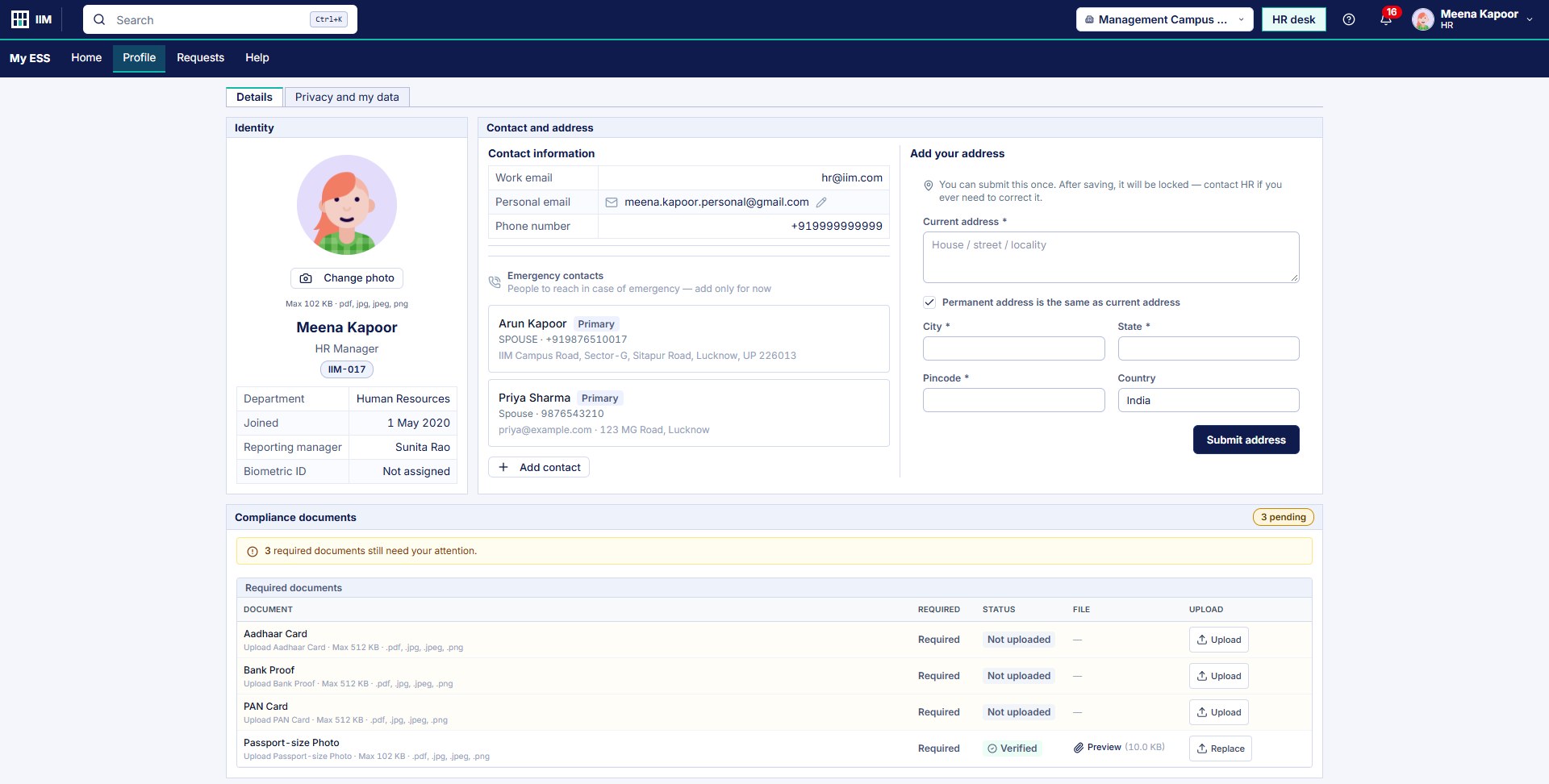
The home page shows the day at a glance: the employee’s shift, today’s attendance, leave balance by type, recent requests and the last seven days. The profile holds their own details: contact information, emergency contacts, a one-time address, the compliance documents HR needs, and their qualifications and training.
Screens show a demo college with sample data.
Why the Privacy and my data screen matters most
Of everything an employee can open in self-service, this is the one screen where the person whose data it is sees what the college holds it for, and says yes or no. That is why HR should get it right first.
- It is the employee’s own notice and choice. The employee reads the DPDP Act 2023 privacy notice, and every use of their data is listed in plain words: salary and payroll data, performance and appraisal data, biometric attendance, background verification and Aadhaar collection. Each one shows whether it is required or can be withdrawn.
- It leaves proof. The screen records which version of the notice was accepted and when, and whether each consent is pending or given. Software cannot make a college compliant, but it can keep this record, and an audit or a complaint will ask for it. Our guide to how Tuling ERP supports DPDP compliance explains what a college can and cannot expect from software.
- It controls daily use. The screen warns that until all consents are recorded, attendance punch, leave application and benefits enrollment may be blocked by the server’s compliance gate. An unrecorded consent can therefore stop a person from using the system on an ordinary day.
- It is where withdrawal happens. Consents that can be withdrawn have a Withdraw button on the same screen, so a change of mind is recorded in the same place as the original consent.
Tuling gives you the tools. How your college meets the Act is for your legal adviser to decide, and dates and duties can change.
Read more on DPDP
Capabilities
Home
-
A home page for the day
Each employee sees their name, role, department and employee ID, their shift with its timings, today's attendance status, and Check in and Check out buttons.
-
Leave balance and requests
The balance for each leave type (casual, earned and short leave) sits beside Apply for leave and Regularise, with recent requests and their status listed below.
-
The last seven days
A table of the last seven days shows the date, day, time in, time out, hours worked, status and any remark, so a missed punch is easy to spot and regularise.
-
Policies to acknowledge
A reminder tells the employee how many HR policies are waiting for their acknowledgement, with a button to read and acknowledge them.
-
Payslips and documents
Attendance, leave, payslips and documents each have their own tab on the employee's page.
Profile
-
Their own profile
The employee's photo, department, joining date, reporting manager and biometric ID, with their contact details and a personal email they can update.
-
Emergency contacts
Employees add the people to reach in an emergency, mark a primary contact, and see each one's relationship, phone number and address.
-
An address submitted once
An employee submits their current and permanent address once. After saving it is locked, and they contact HR if it ever needs correcting.
-
Compliance documents with status
Required documents such as Aadhaar, bank proof, PAN and a passport-size photo are listed with their status (not uploaded or verified), with Upload and Replace buttons and file type and size limits shown.
-
Qualifications, training and previous employment
Employees keep their qualifications, training records and previous employment on their own profile.
Privacy and my data
-
Privacy notice
The employee sees the privacy notice for staff under the DPDP Act 2023, with the date they last accepted it and a link to read the full notice.
-
A consent register
Each data use is listed with a plain description, such as salary and payroll data, performance and appraisal data, biometric attendance, background verification and Aadhaar collection. It shows whether the consent is required or can be withdrawn, and whether it is pending or given.
-
Accept and withdraw
Employees accept a consent one at a time or all pending ones together, and withdraw the consents that can be withdrawn.
Attendance and leave
-
An attendance calendar
A monthly calendar marks present, late, absent, leave, holiday and week-off days, beside the assigned shift with its timings and grace period, and a Regularise a day button.
-
Apply for leave
The employee picks a leave type, the dates and a reason, and sees the balance for each type beside the form. Applications and the leave trail have their own tabs.
FAQ